![RosyLogoSummer-1.png]](https://support.rosysalonsoftware.com/hs-fs/hubfs/RosyLogoSummer-1.png?height=40&name=RosyLogoSummer-1.png)
When a client requests an appointment time that is unavailable, they can be added to a waiting list. This list will pop up when a time slot becomes available due to a cancellation.
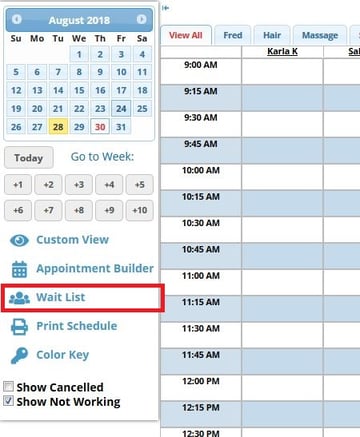
1. On the left side of the Schedule screen, click the Wait List button
2. Search & select the appropriate client or create a new client
(If you have multiple location accounts, you also have the ability to choose the Business from the drop-down before selecting the client)
3. Select the Service and Date Range the client wishes to schedule (select a specific Service Provider if requested)
4. Add a note if necessary
5. Click the Add to List button
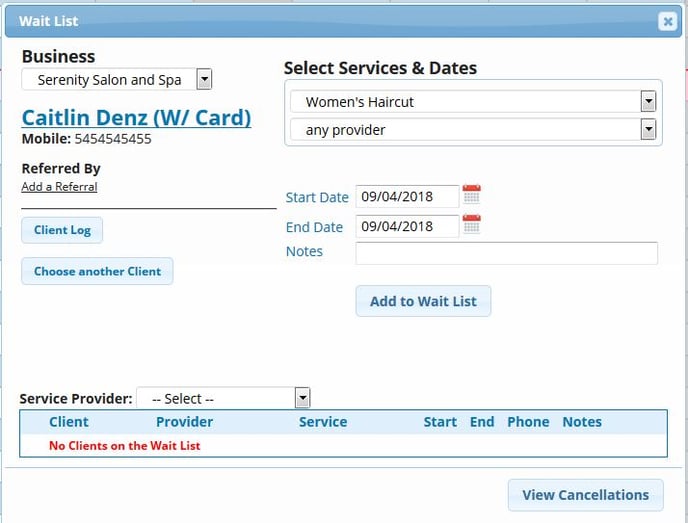
NOTE: By clicking on the View Cancellations button at the bottom of the Wait List window, you will bring up a detailed list of all cancellations and the reason for the cancellation
When the cancellation list pops up…
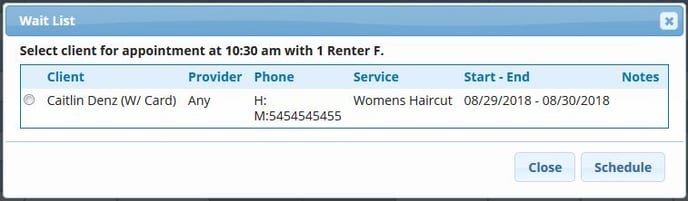
1. If the opening is acceptable, click the circle next to the first client on the wait list, then click Schedule
2. If the waiting client cannot make that opening, simply click Close, and the client will remain on the wait list
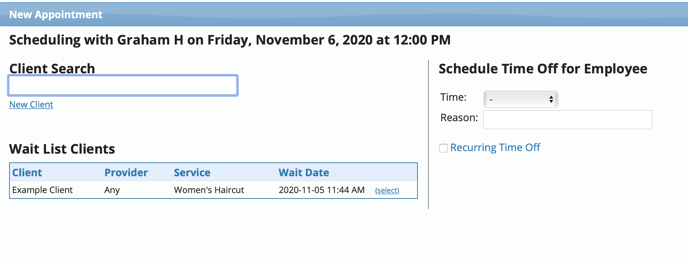
You can also schedule clients directly from the appointment window. After clicking on a time slot you will see clients waiting for an appointment below the search. Click Select to begin the scheduling process for that client. Once scheduled for the service they were waiting for it will remove them from the wait list.
1. On the left side of the Schedule screen, click the Wait List button
2. Search & select the appropriate client or create a new client
(If you have multiple location accounts, you also have the ability to choose the Business from the drop-down before selecting the client)
3. Select the Service and Date Range the client wishes to schedule (select a specific Service Provider if requested)
4. Add a note if necessary
5. Click the Add to List button
2. If the waiting client cannot make that opening, simply click Close, and the client will remain on the wait list
You can also schedule clients directly from the appointment window. After clicking on a time slot you will see clients waiting for an appointment below the search. Click Select to begin the scheduling process for that client. Once scheduled for the service they were waiting for it will remove them from the wait list.